Slack
Slack integration lets users create and follow up on CoderFlow tasks directly from Slack — by mentioning the bot, sending it a direct message, running a slash command, or invoking a message shortcut. Task results are posted back to the Slack thread where the request originated.
Overview
When Slack is configured:
- @CoderFlow mentions — Users mention the bot in any channel or thread to start a task. The bot replies in the same thread; follow-up mentions in the thread continue the same task.
- Direct messages — Users DM the bot to start a task in a 1-on-1 conversation. Each thread maps 1-to-1 to a CoderFlow task.
- Slash command —
/coderflow <instructions>works anywhere in Slack, including private DMs the bot isn't part of. In conversations where the bot has access, it posts a visible "Working on it…" message; otherwise it falls back to a side conversation in the user's CoderFlow app DM. - "Ask CoderFlow" message shortcut — Right-click any message and choose Ask CoderFlow to open a modal where the user picks an environment (and optionally includes thread context), then runs the task in a private side conversation.
- Thread follow-ups — A Slack thread maps to a single ongoing task. Subsequent mentions in the same thread issue follow-ups on that task rather than spawning new ones.
- Screenshot attachments — Image files attached to the triggering Slack message, image URLs in Slack message attachments, or included thread context are downloaded and attached to the CoderFlow task, so agents can inspect screenshots from
/task-output/attachments/. Up to 25 files per request and 50 MB per file are accepted; non-image files and oversized files are skipped. - Account linking — Users link their Slack identity to their CoderFlow account once, after which all Slack-created tasks are attributed to them and run under their permissions.
- Channel monitoring — Admins can turn on monitoring for a channel so that each new issue posted there starts a task automatically, without anyone mentioning the bot. The monitor never posts in Slack: tasks run as a chosen CoderFlow user and appear in their review queue, and that person replies in Slack themselves. See Channel Monitoring.
Slack configuration is global — it applies to all environments and all users on the server.
Prerequisites
- A Slack workspace where you can install a custom app
- The CoderFlow Slack webhook endpoints reachable from Slack over HTTPS — Slack's Events API, Interactivity, and Slash Commands all post to public webhook URLs. If the main CoderFlow server is behind a firewall, expose only
/api/slack/events,/api/slack/commands, and/api/slack/interactionsthrough a reverse proxy/tunnel, or use the shared messaging-integrations ingress listener described below. - Permission to create Slack apps in your workspace (workspace owner or admin, depending on workspace policy)
- For Slack file attachments, the CoderFlow app must be added to the source channel or conversation. Slack's
files:readscope only grants file access in channels and conversations the app has been added to.
Setup
Setup has two stages: create the Slack app from a generated manifest, then enter the Slack credentials in CoderFlow Settings.
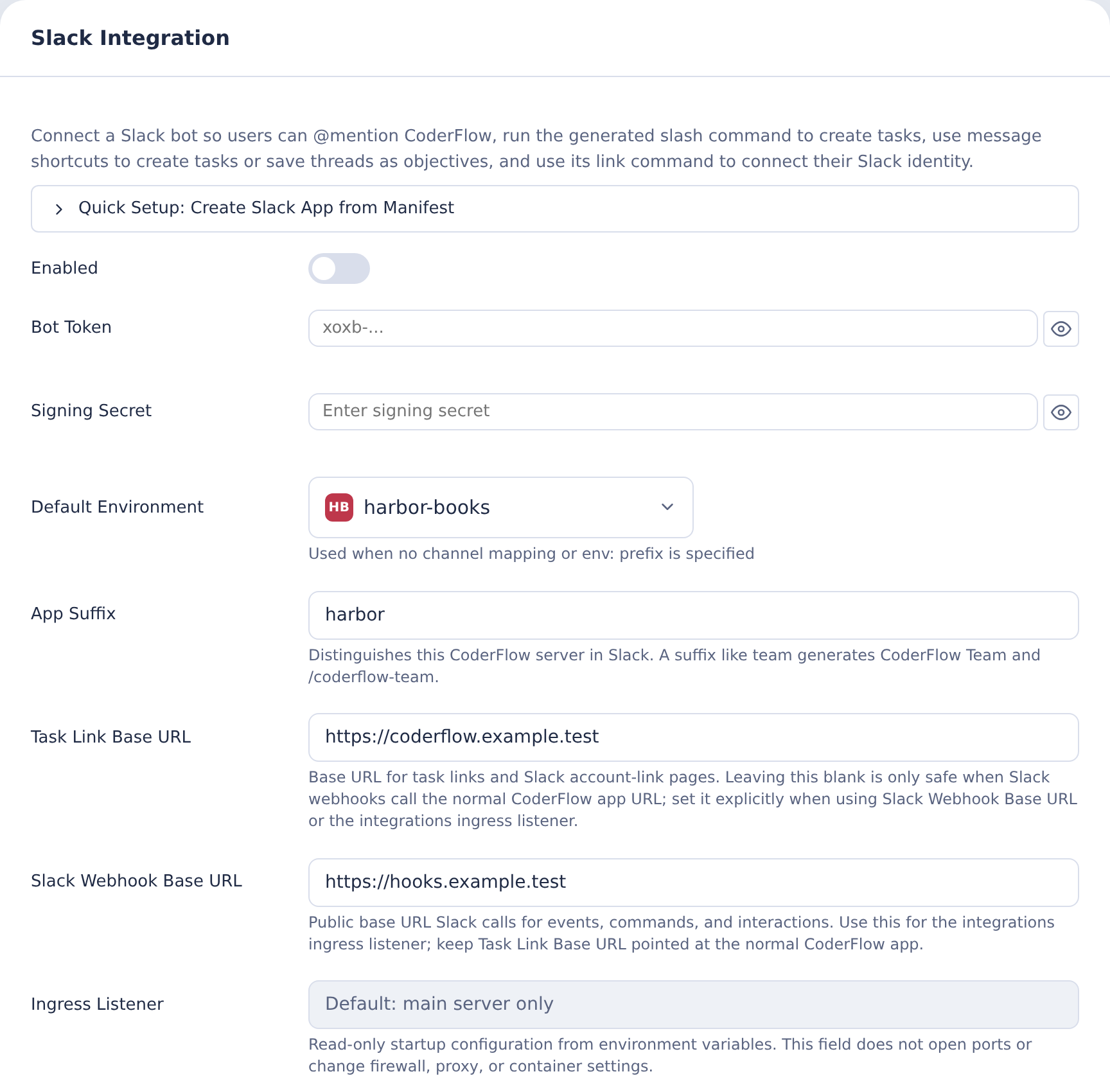
1. Configure Settings in CoderFlow
- Go to Settings → Slack Integration
- Toggle Enabled on
- (Optional) Set the App Suffix if you want a non-default slash command name. With suffix
team, the slash command becomes/coderflow-teamand the bot is named accordingly. Leave blank for/coderflow. - (Optional) Set the Task Link Base URL if it should differ from the server's current URL. This is the URL Slack messages use when linking back to a task and for account-link pages.
- (Optional) Set the Slack Webhook Base URL if Slack should call a different public URL, such as a Slack-only ingress listener or reverse proxy.
- (Optional) Add Channel Mappings — see Channel Mappings below.
2. Create the Slack App from the Manifest
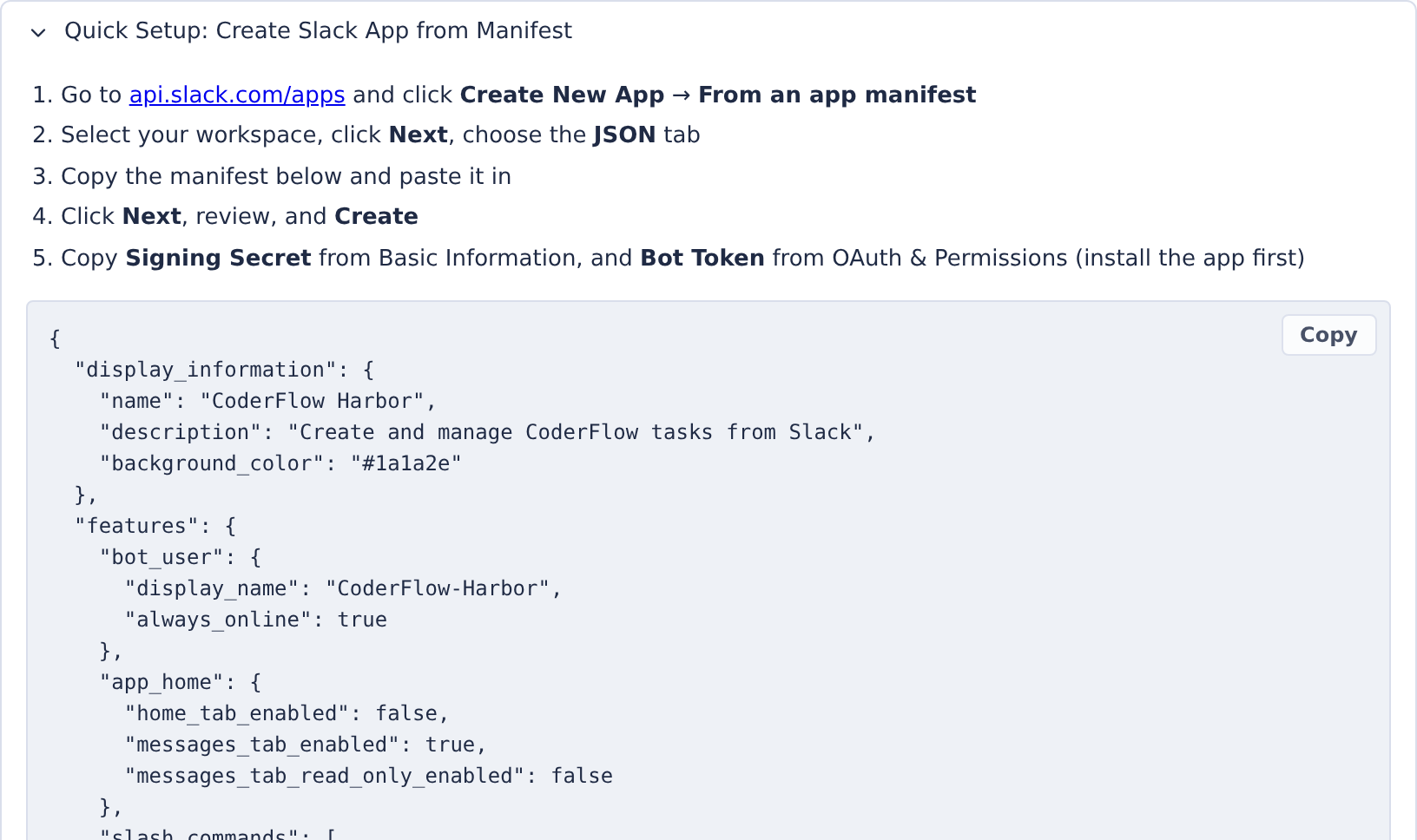
- In the Slack Integration settings panel, expand Quick Setup: Create Slack App from Manifest
- Click Copy to copy the generated manifest JSON
- Open api.slack.com/apps and click Create New App
- Choose From a manifest, select your workspace, click Next
- Choose the JSON tab, paste the manifest, click Next, review, and click Create
- From the new app's Basic Information page, copy the Signing Secret
- Go to OAuth & Permissions, click Install to Workspace, approve the requested scopes, and copy the Bot User OAuth Token (starts with
xoxb-)
If you are updating an existing CoderFlow Slack app from an older manifest, reinstall the app or approve the added files:read scope so CoderFlow can download image attachments from Slack messages.
The manifest also subscribes to the message.channels and message.groups events, which channel monitoring needs. If your Slack app was created from an older manifest, update its manifest (or add these two bot events under Event Subscriptions) and save. No new permission scopes are needed, because the manifest already requests channels:history and groups:history, so Slack does not ask you to reinstall. Reinstall only if Slack shows its "reinstall your app" banner, which means the app is missing one of those scopes. Messages from channels that are not monitored are ignored.
3. Enter Credentials in CoderFlow
Back in Settings → Slack Integration:
- Paste the Bot Token
- Paste the Signing Secret
- Pick a Default Environment (used when no other environment can be resolved — see Environment Selection)
- Click Test Connection to verify the bot token reaches Slack
- Click Save
Changes take effect immediately — no server restart needed.
Optional messaging-integrations ingress listener
By default, Slack routes are served by the main CoderFlow server at /api/slack/*. Production deployments can instead start a second HTTP listener dedicated to the messaging integrations and expose only that port publicly, keeping the main CoderFlow application port private.
This listener is shared by Slack and Microsoft Teams — the same port serves both integrations' inbound endpoints. It is route and port isolation, not process isolation: the listener runs inside the same Node process as the main CoderFlow server, so it reduces the public HTTP route surface but is not a separate process, user, container, or privilege boundary.
Set the following before starting the server:
INTEGRATIONS_INGRESS_MODE=listener
INTEGRATIONS_INGRESS_PORT=3002
INTEGRATIONS_INGRESS_HOST=0.0.0.0
INTEGRATIONS_INGRESS_PORT by itself also enables listener mode.
SLACK_WEBHOOK_BASE_URL does not start or configure this listener. It is only a deployment-supplied default shown in the Slack settings UI for manifest generation; save Slack Webhook Base URL in the UI if you want it persisted in Slack configuration.
The listener serves:
GET /healthPOST /api/slack/eventsPOST /api/slack/commandsPOST /api/slack/interactionsPOST /api/teams/messages
It does not serve the CoderFlow web UI, authenticated APIs, or the Slack and Teams account-link browser pages.
When using this listener:
- Set Slack Webhook Base URL to the public HTTPS URL for the listener, for example
https://slack-hooks.example.com. - Set Task Link Base URL to the normal CoderFlow application URL users open in a browser. This is required for Slack account-link URLs when Slack uses the separate ingress URL.
- Check the read-only Ingress Listener field to confirm the server sees the expected environment-driven listener mode.
- Copy the generated Slack manifest after setting both fields.
Channel Mappings
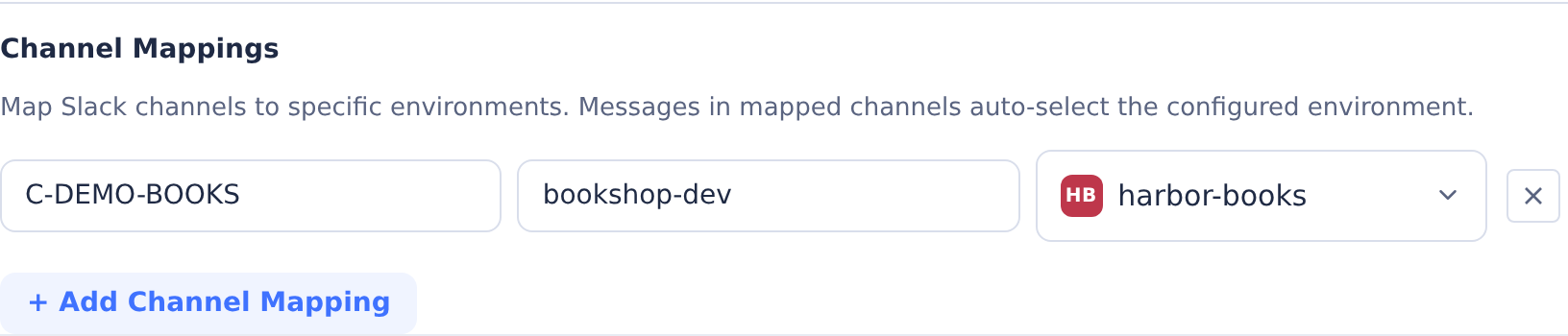
Channel mappings let admins pre-assign an environment to a specific Slack channel, so tasks started in that channel always run in the chosen environment without prompting users.
In the Channel Mappings subsection of the Slack settings panel:
- Click + Add Channel Mapping
- Enter the Slack Channel ID (e.g.,
C0123456789). To find a channel ID in Slack, open the channel, click its name in the header, and scroll to the bottom of the About tab. - Enter a Channel Name for your own reference (display only — not used for matching)
- Select an Environment from the dropdown
- Click Save at the bottom of the panel
Channel mappings are not required. They are useful when teams have a dedicated channel for a specific project or codebase.
Each mapping can also turn on Monitor this channel. See Channel Monitoring.
Account Linking
Before a user can create CoderFlow tasks from Slack, their Slack identity must be linked to their CoderFlow user. This ensures tasks run under the user's CoderFlow permissions and are attributed to them.
To link an account:
- In Slack, run
/coderflow link(or/coderflow-<suffix> linkif an app suffix is configured) - The bot replies with a one-time link
- Click the link — the browser opens a CoderFlow page that completes the linking. The user must be signed into CoderFlow in the same browser.
- The page confirms: "Slack account linked. Your Slack user is now linked to this CoderFlow account. Future Slack-created tasks will appear under your CoderFlow user."
If an unlinked user tries to create a task from Slack, the bot replies with a prompt to run /coderflow link first. No task is created.
The link token expires after a short window. If the link is reported as invalid or expired, run /coderflow link again to get a fresh one.
Usage
Mention the Bot in a Channel
In a channel where the bot is a member, mention the bot with your request:
@CoderFlow add a unit test for the login flow
The bot replies in a thread. Subsequent mentions in that same thread continue the conversation as follow-ups on the same task.
To add the bot to a channel: /invite @CoderFlow from inside the channel, or use the channel's Integrations settings.
DM the Bot
Open a direct message with the @CoderFlow app and send your request as a normal message. Each Slack thread in the DM maps to one CoderFlow task. To start a new task, start a new thread in the DM.
Slash Command
/coderflow <instructions> works anywhere in Slack:
- In a channel where the bot has access, the slash command posts a visible Working on it… acknowledgement, and the task and its results stay in that conversation.
- In a private DM the bot isn't part of, the slash command starts a side conversation in the user's CoderFlow app DM. An ephemeral message in the source DM explains where the work moved.
Group DMs (multi-person DMs): CoderFlow cannot read the earlier messages in a group DM where the bot has not been added, because Slack does not allow apps to join group DMs. This is a Slack platform limitation, not a configuration issue. The command still runs: CoderFlow creates the task from your command text only, moves its reply to your 1:1 DM with the bot, and tells you the group-DM history was not included. To give CoderFlow the surrounding discussion, run the command in a channel with the bot invited, in your 1:1 DM with the bot, or paste the relevant context into the command itself.
"Ask CoderFlow" Message Shortcut
Right-click any message in Slack and choose More message shortcuts → Ask CoderFlow. A modal opens where the user:
- Picks an environment
- Optionally includes the original message thread as context
Clicking Submit creates a task in a private conversation with the user.
Image files attached to the selected message are included even when thread context is disabled. This includes Slack file uploads and safe HTTPS image URLs from Slack message attachments. When thread context is enabled, image files from the fetched thread context are included too.
Channel Monitoring
Channel monitoring starts a CoderFlow task automatically for each new issue posted in a channel, so nobody has to mention the bot. It suits channels where people report bugs, errors or questions about a product. The monitor never posts in the channel: it doesn't acknowledge messages, ask follow-up questions, or post results. Tasks run as a CoderFlow user you choose and appear pinned in that person's review queue, and they review the result and reply in Slack themselves.
Monitoring works in public and private channels. It is off for every channel until an admin turns it on.
Turn on monitoring for a channel
- Make sure the Slack app subscribes to the
message.channelsandmessage.groupsevents. Apps created from the current manifest already do. For an older app, add the two events (see step 2 of Setup); this normally doesn't require reinstalling the app. - Invite the bot to the channel with
/invite @CoderFlow. Slack only sends a channel's messages to apps that are members. - In Settings → Slack Integration → Channel Mappings, add a mapping for the channel (or use an existing one) and choose the environment tasks should run in.
- Turn on Monitor this channel and review its settings:
| Setting | What it does |
|---|---|
| Run as | The CoderFlow user each task runs as. Tasks use this person's permissions and connections and appear in their review queue. Defaults to whoever turns monitoring on. Only people who can create tasks in the environment are listed. |
| Instructions | A Markdown editor prefilled with the default workflow: investigate the issue, implement a clear and contained fix, or research it and summarize findings. Edits replace this workflow. The Slack conversation and delivery rules are attached automatically. Leaving the field blank restores the default. Supports up to 5,000 characters. |
| Agent | The coding agent that runs each task. Environment default uses the environment's configured agent. |
| Skip messages that aren't issues | Uses the server's Utility AI model (see Automatic Names and Commit Messages) to skip chatter such as thanks or "+1", and to spot follow-ups to an issue that already has a task. If the check can't run, the task starts anyway. On by default. |
| Wait before starting (seconds) | How long to wait after the latest message so a report split across several messages, screenshots or quick replies becomes one task. Default 120. |
| Maximum running tasks | New reports wait while this many tasks from the channel are still running. Default 2. |
| Maximum tasks per day | Reports beyond this many in any 24 hours are skipped. Default 20. |
- Click Save. CoderFlow checks that the run-as user can create tasks in the environment and validates the monitor settings.
Older monitors that used additional instructions keep the default workflow with their additional text appended once in the editor. Monitors that used a task template are paused; review their Instructions and save to resume.
What the monitor does with messages
- New top-level message — Starts a wait. When the channel has been quiet for the wait period, CoderFlow reads the message, its thread replies and any screenshots, checks whether it is an issue (if that setting is on), and starts a task. The task includes the conversation, the screenshots, and a link to the Slack thread.
- More messages from the same person during the wait — Become part of the same task, so a report posted as several top-level messages is handled once.
- A reply that arrives while CoderFlow is checking a report — Restarts the wait. The report is read and checked again afterwards, so the task (or the decision to skip) reflects the latest conversation.
- A later top-level message from the same person — When it looks like more detail for an issue that already has a task, no new task starts. It appears in the activity list next to the existing task so you can pass it on.
- Replies in a thread that already has a task — Never start anything, including your own replies.
- Replies in a thread that was skipped — Check the thread again, up to a few times. Replies from the run-as user don't trigger this.
- @mentions of the bot — Are handled by the normal mention flow, which replies in the thread. The monitor leaves those threads alone.
- Bot messages, edits and threads started before monitoring was turned on — Are ignored.
The monitor records which threads it has handled in slack-channel-monitor.json in the server's data directory, so a restart does not start duplicate tasks. This includes a restart in the middle of starting a task: the task carries a launch ID, and CoderFlow reuses it rather than starting another. No task starts until that launch ID is saved; if the data directory can't be written, the report is retried and then recorded as failed.
If Slack rate limits CoderFlow or is briefly unreachable while the monitor reads a thread, the report keeps waiting and is retried with increasing delays (honoring Slack's Retry-After) for about 15 minutes before it is recorded as failed. Deleted messages are skipped. If CoderFlow can't read the channel at all, for example because the bot was removed from it, the report is recorded as failed with the reason.
Review monitored tasks
Monitored tasks are pinned to the run-as user's review queue, and they get the usual task completion notifications. Each task shows a Slack pill on its dashboard tile and an Open Slack thread link on the task page, so you can go to the conversation and reply.
Channel Monitor Activity
Because nothing is posted in Slack, Settings → Slack Integration → Channel Monitor Activity lists what the monitor did with recent messages: tasks it started, messages it skipped and why, follow-ups it matched to an existing task, threads left to an @mention, failures, and channels paused for instruction review. Entries link to a task or Slack thread when one is available. Click Refresh to update the list.
Security considerations
Anyone who can post in a monitored channel can start agent tasks that run with the run-as user's permissions, and the message text becomes part of the agent's instructions. Only monitor channels whose members you trust. For channels shared with people outside your organization, such as Slack Connect channels, choose an environment whose credentials limit what a task can change. Changes a task makes still need review and approval before they are committed, as with any task.
Environment Selection
When a task is created from Slack, the environment is resolved in this priority order:
- Inline
env:<name>syntax in the message — e.g.,@CoderFlow env:frontend fix the layout bug - Channel mapping — if the source channel has an admin-configured mapping
- Single-environment auto-select — if the user only has access to one environment, it is selected automatically
- Default environment — the default configured in Settings → Slack Integration
- Interactive picker — if none of the above resolve, the bot posts a dropdown for the user to choose from
Users can only select environments they have permission to create tasks in. Unauthorized environments are filtered from the picker.
Security
- Signature verification — Every inbound request from Slack is verified with HMAC SHA-256 against the signing secret. Requests with invalid signatures are rejected.
- Replay protection — Requests with timestamps older than 5 minutes are rejected.
- Event deduplication — Slack's retry events are deduplicated to prevent duplicate task creation.
- Optional ingress isolation — A dedicated listener can expose only the messaging-integration endpoints (Slack and Teams) on a separate port, keeping the main CoderFlow application port private. Requests that fail signature verification are ignored.
- File access scope — The generated manifest requests
files:readso CoderFlow can download image file uploads from Slack messages that users explicitly send to or select for CoderFlow. Non-image files are ignored by the Slack integration. Image URLs from Slack message attachments are fetched without the bot token and are blocked if they are not HTTPS or resolve to private network addresses. - Token storage —
slack.jsonis written with0o600permissions (owner read/write only). - Secret masking — The settings API never returns the bot token or signing secret in plain text. The UI shows whether each is set, not the value.
- Account-linked permissions — Tasks run under the linked CoderFlow user's permissions. Unlinked users cannot create tasks.
- Channel monitoring — Off unless an admin turns it on for a channel. Monitored tasks run as the configured user, whose permission to create tasks in the environment is checked when settings are saved and again before every task. See Security considerations.
Configuration File
The Slack configuration is stored in slack.json inside the server's data directory (SERVER_DATA_PATH, defaulting to ~/.coder/data). The settings UI is the primary way to manage this — direct edits are possible but unusual.
Most Slack settings live in the JSON file or the UI. Deployment-level ingress settings are environment variables because they affect which network listeners start:
INTEGRATIONS_INGRESS_MODE=listener— start the shared Slack + Teams messaging listenerINTEGRATIONS_INGRESS_PORT— listener port (also enables listener mode on its own)INTEGRATIONS_INGRESS_HOST— listener bind hostSLACK_WEBHOOK_BASE_URL— optional default shown in the settings UI for manifest generation. It is not a runtime listener setting and does not replace the saved Slack configuration used for Slack requests.
Troubleshooting
Test Connection fails
- Verify the Bot Token starts with
xoxb-and was copied from the OAuth & Permissions page after installing the app to the workspace - Verify the Signing Secret was copied from Basic Information, not the App-Level Token or Verification Token
- Check that the workspace where the app was installed is the workspace where users will be using it
Slack mentions don't trigger anything
- Confirm the bot has been invited to the channel (
/invite @CoderFlow) - Confirm the Slack app's Event Subscriptions are enabled and pointed at
https://<your-server>/api/slack/events(the manifest sets this; if you edited it, re-verify) - Check that the server URL is reachable from Slack over HTTPS — Slack will not deliver events to an unreachable or unverified URL
- Check the server logs for signature verification errors (often indicates the signing secret in CoderFlow doesn't match the Slack app)
A monitored channel doesn't start tasks
- Check Settings → Slack Integration → Channel Monitor Activity. Skipped messages and failures are listed there with the reason.
- Confirm the bot is a member of the channel (
/invite @CoderFlow). - Confirm the Slack app subscribes to the
message.channelsevent (public channels) ormessage.groupsevent (private channels). If Slack shows a "reinstall your app" banner on the app's settings page, reinstall it so thechannels:historyorgroups:historyscope takes effect. - Confirm the mapping's channel ID matches the channel and Monitor this channel is on.
- Remember that tasks start only after the wait period, and only for messages posted after monitoring was turned on.
"Sending messages to this app has been turned off" in DMs
The Slack app's App Home → Messages Tab must be enabled and writable. The generated manifest sets this correctly; if you edited the manifest manually, re-enable it on the App Home settings page in Slack.
Screenshot attachments are not available to tasks
- Confirm the Slack app has been reinstalled or reauthorized after adding the
files:readscope. - Confirm the CoderFlow app is a member of the channel or conversation where the file was shared. Message shortcuts can expose message text and preview metadata even when the app is not in the channel, but Slack will not let the bot token download files from conversations it cannot access.
- Confirm the attachment is either an image upload in Slack or an HTTPS image URL in a Slack message attachment. Non-image files are ignored, and image URLs are skipped if they resolve to private network addresses.
- Confirm the file is under 50 MB and that the request has at most 25 attached files. Files exceeding either limit are skipped.
- Check server logs for Slack file download warnings, such as missing scope, failed download, or files over the upload size limit.
Slash command says "dispatch_failed" or times out
- The CoderFlow server must respond to
/api/slack/commandswithin 3 seconds. If the server is overloaded or the URL is wrong, Slack reports a dispatch failure. - Confirm
https://<your-server>/api/slack/commandsis reachable from the public internet
"Link your Slack user to your CoderFlow account…"
The user has not linked their Slack identity yet. Run /coderflow link in Slack and follow the link, signed into CoderFlow in the same browser.
A user can't see an environment they expect in the picker
The picker only shows environments the user has tasks:create permission on. Check Administration → People & Access to confirm their role grants access to that environment.
Tasks aren't attributed to the right user
- Confirm the user has run
/coderflow linkand completed the link flow successfully - If they linked under a different CoderFlow account by mistake, they can run
/coderflow linkagain to overwrite the link with the currently signed-in CoderFlow user